Hey guys, A lot of people ask me about how I get textures in my digital paintings so I've decided to show you how.
Now there are different ways to do it. You can either get the effect through using different brushes in Photoshop on different opacities or different flow. OR you can use a single image of a texture and put it on a layer over top of your image and change the type of layer it is. You can either make your own textures using paint or scan the bottoms of your old rusty pots and pans or you can just download them. It all depends on the look you're going for. Two GREAT places I know of online to find them are:
Mayang
CGTextures
For those of you who do not know how to get access to the different kinds of brushes in Photoshop, I will show you.
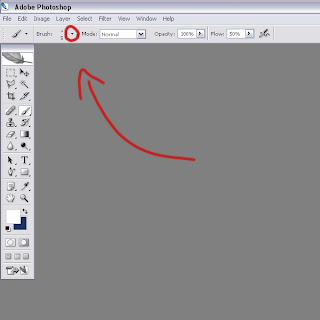
First select your brush. Than click on the little tab next to where you can adjust the diameter of your brush.
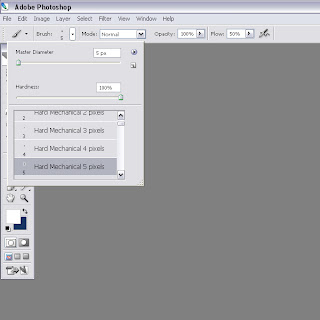
It should open up a little menu like this showing the different brushes you can select.
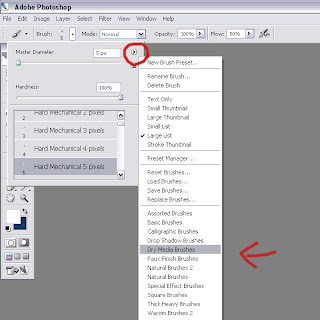
Click on the little tab on the side, than another menu pops up and at the bottom of the menu are the various kinds of brushes you can select.
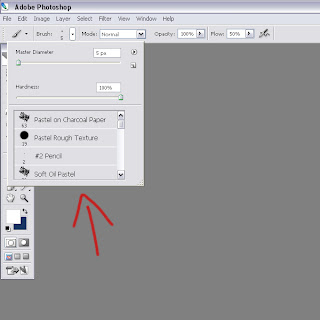
After clicking on your desired selection, (for example I have chosen "Dry Media Brushes") you should be able to choose from the brushes of that specific category.
I'll show you how I usually put just one texture over top of the entire image. I use the layer type of the layer with the texture on it to get my desired effect.
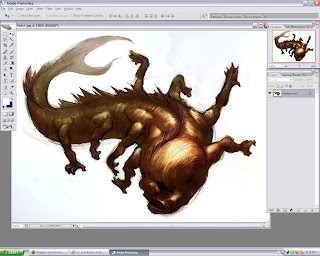
First I take my image. (I used mostly brushes from the "Dry Media Brushes" selection to colour this one by the way :D )
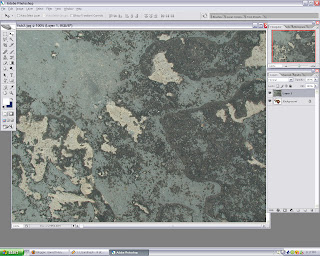
Than I take the texture (This one's from Mayang.com) and copy and paste it on to a layer on top of the image.
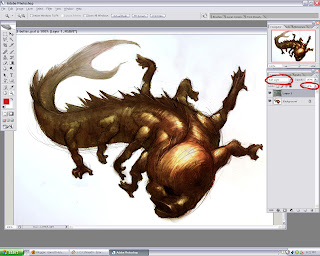
Than I set the layer to whatever works best with what you want to do. In this case I used "Soft Light" and I felt it was a bit strong so I lowered the "fill" of the layer. Also if you don't want the texture in certain areas, adjust the opacity of your eraser and go in and take out what you don't need.
Well there you go guys, hope it helps!
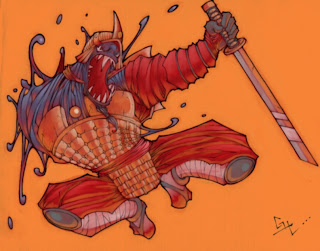
EDIT: Here's an old one from high school. It's a clearer example of the effects the texturing does.

 After doing this image I realized she kind of resembled Scarlet Johanson a bit, and it reminded me of this time I did a celebrity look alike test and apparantley I look like Scarlet Johanson!
 I think the likeness is UNCANNY!!! REALLY!!!


 These are some paintings I did in gouache and water colour while I was staying at my grandma's place for a week near the end of the summer.


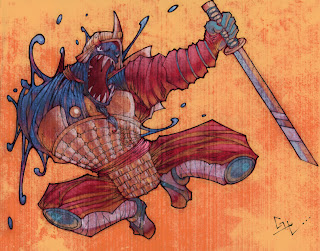
 SAMURAI!!!


